 outlineGo
Guide / your first sketch
How to make
your first sketch.
Each side needs a direction, a length and a saved point. Start with a simple outline and lengths checked with a tape measure.

Actual app screens with demonstration data. The garden camera scene is an illustration. The screens illustrate individual actions; the finished garden is a separate downloadable example.
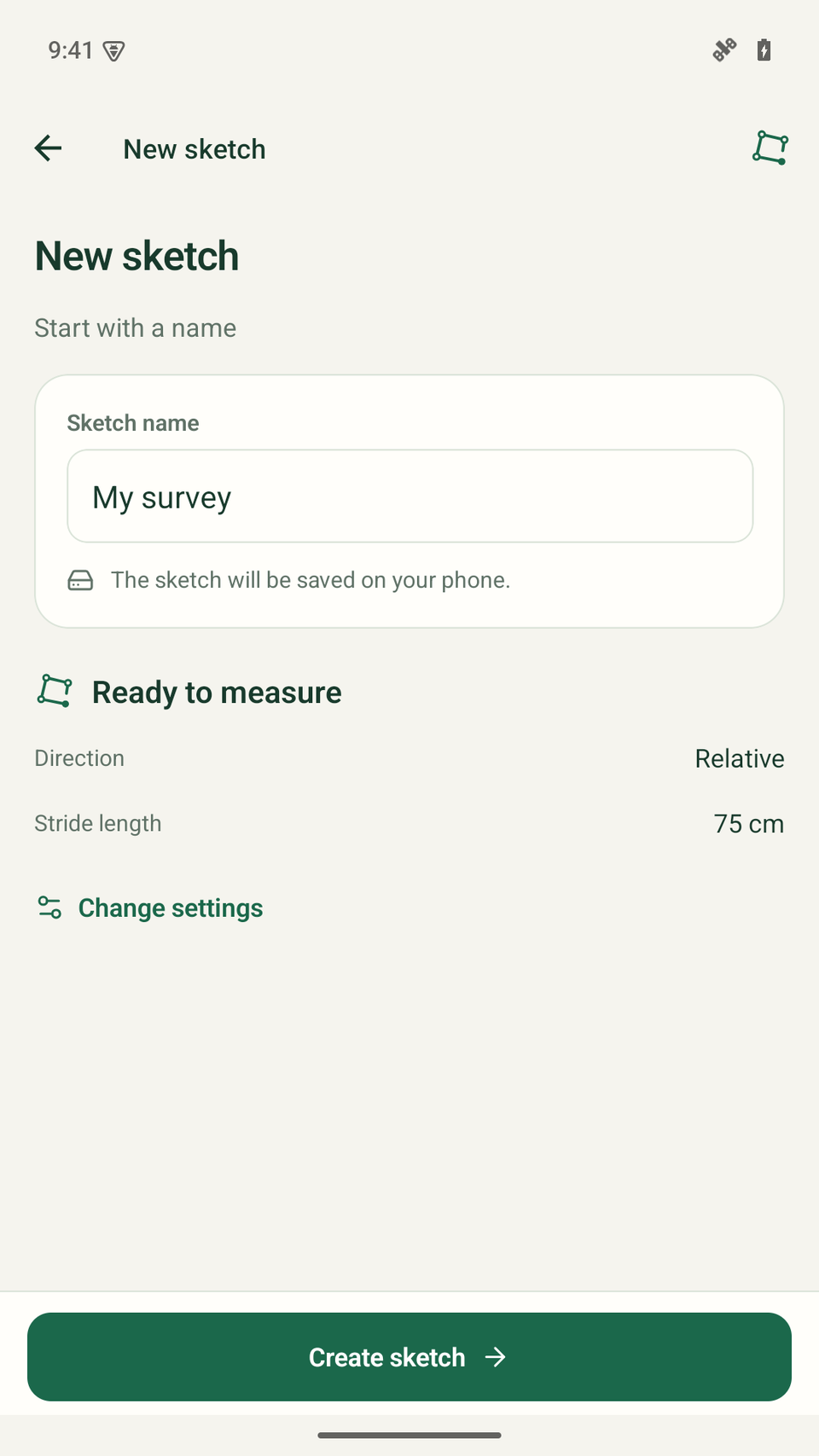
Name the sketch and set the first point
Choose New sketch, enter a name and check the settings. Choose your length unit and direction method.
Stand at the first corner. Create the sketch and follow the instructions to save P1. For phone-based directions, set a reference when the app asks.
Save the direction of the next side
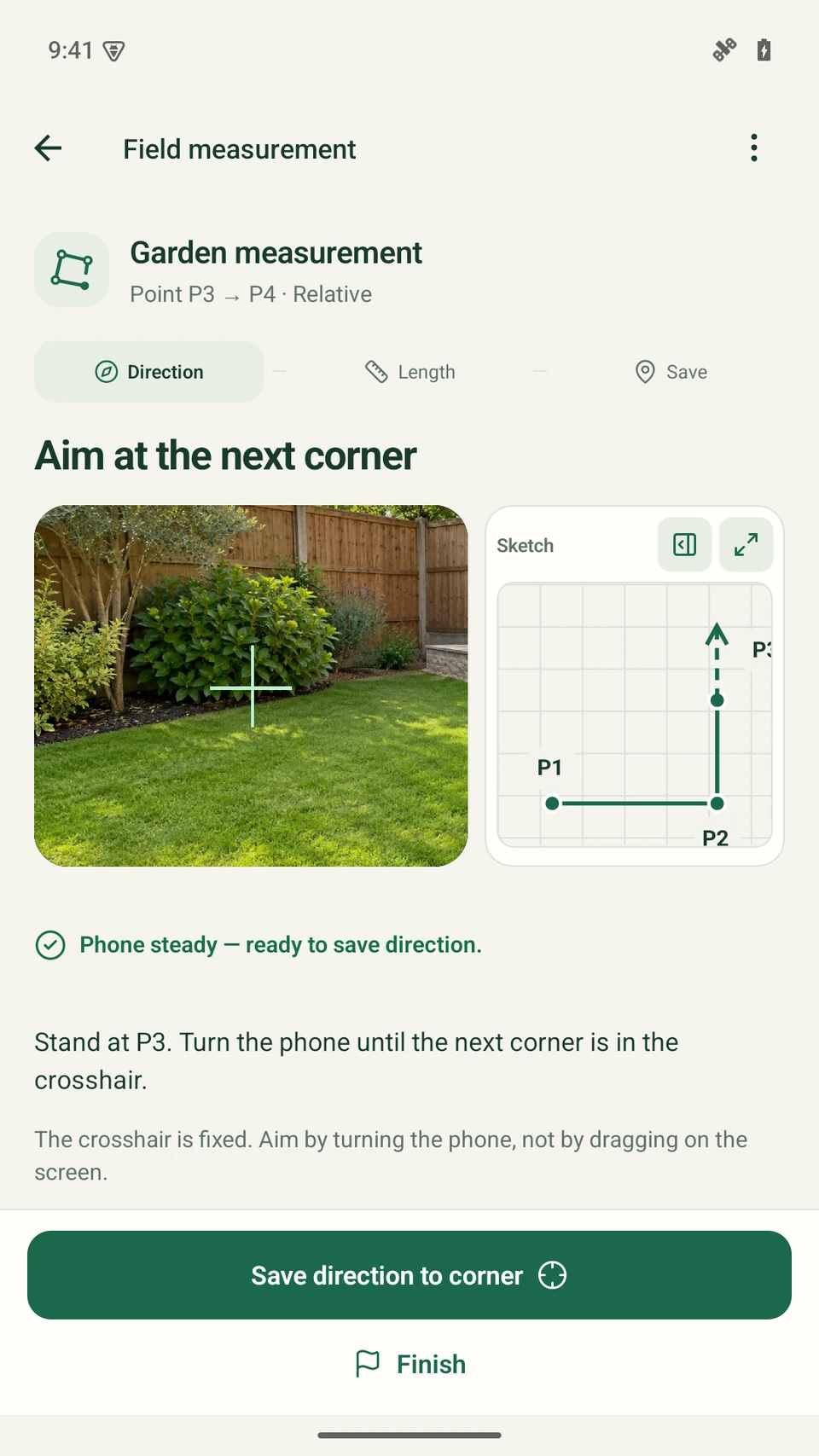
Aim the rear camera at the next corner by turning the phone. The viewfinder stays fixed on the screen; you do not drag it with your finger.
Hold the phone steady and wait until it is ready. Choose Save direction to corner. In manual mode, enter the turn as instructed instead of using the camera.
Enter a length or estimate it from steps
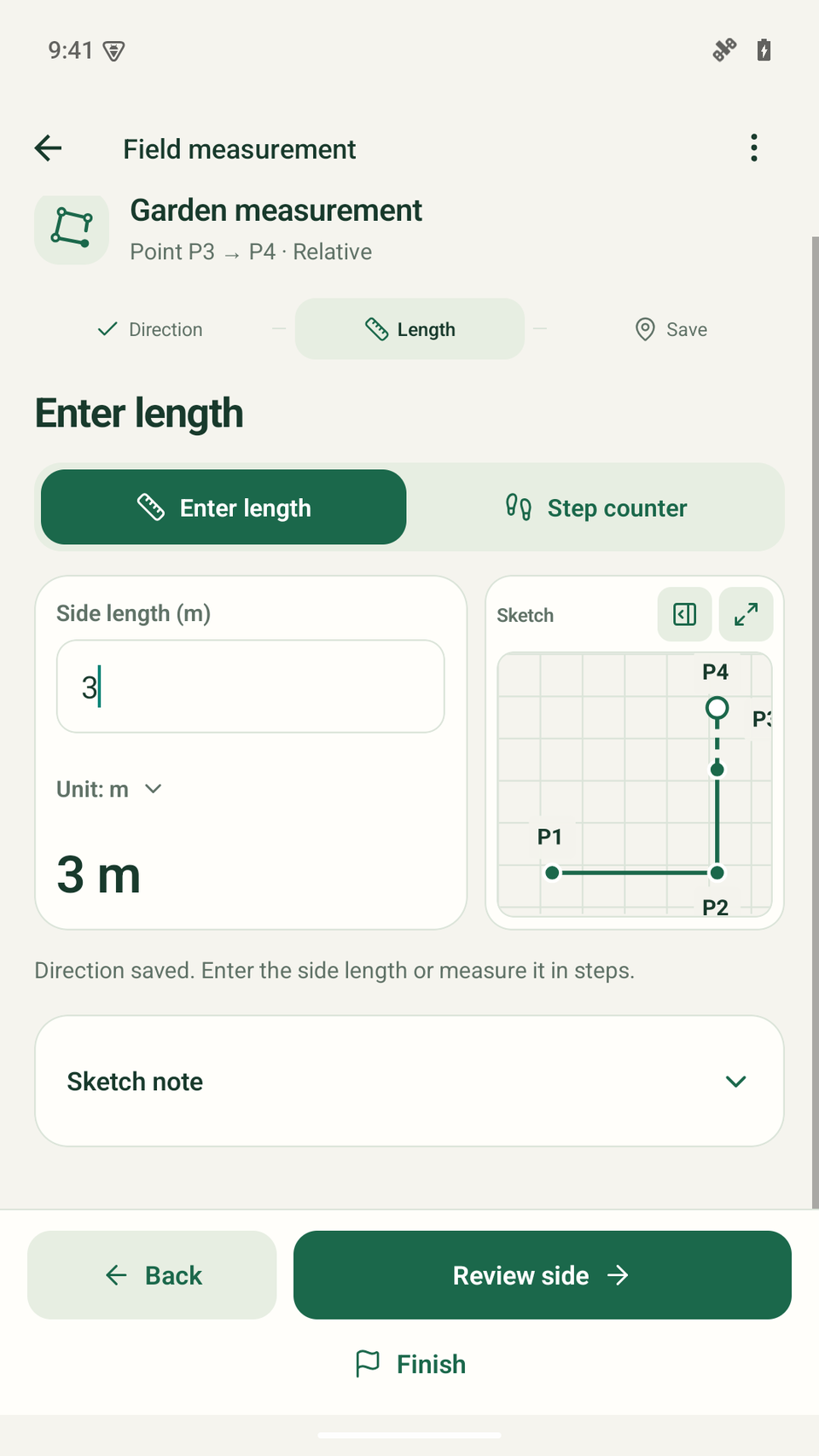
After saving the direction, continue to length. Choose Enter length and enter a positive value in the displayed unit. The example side shown here is 3 m.
You can also use step counting: check your configured step length, start counting and stop after walking the side. A step-based length is an estimate.
Review the side and save the point
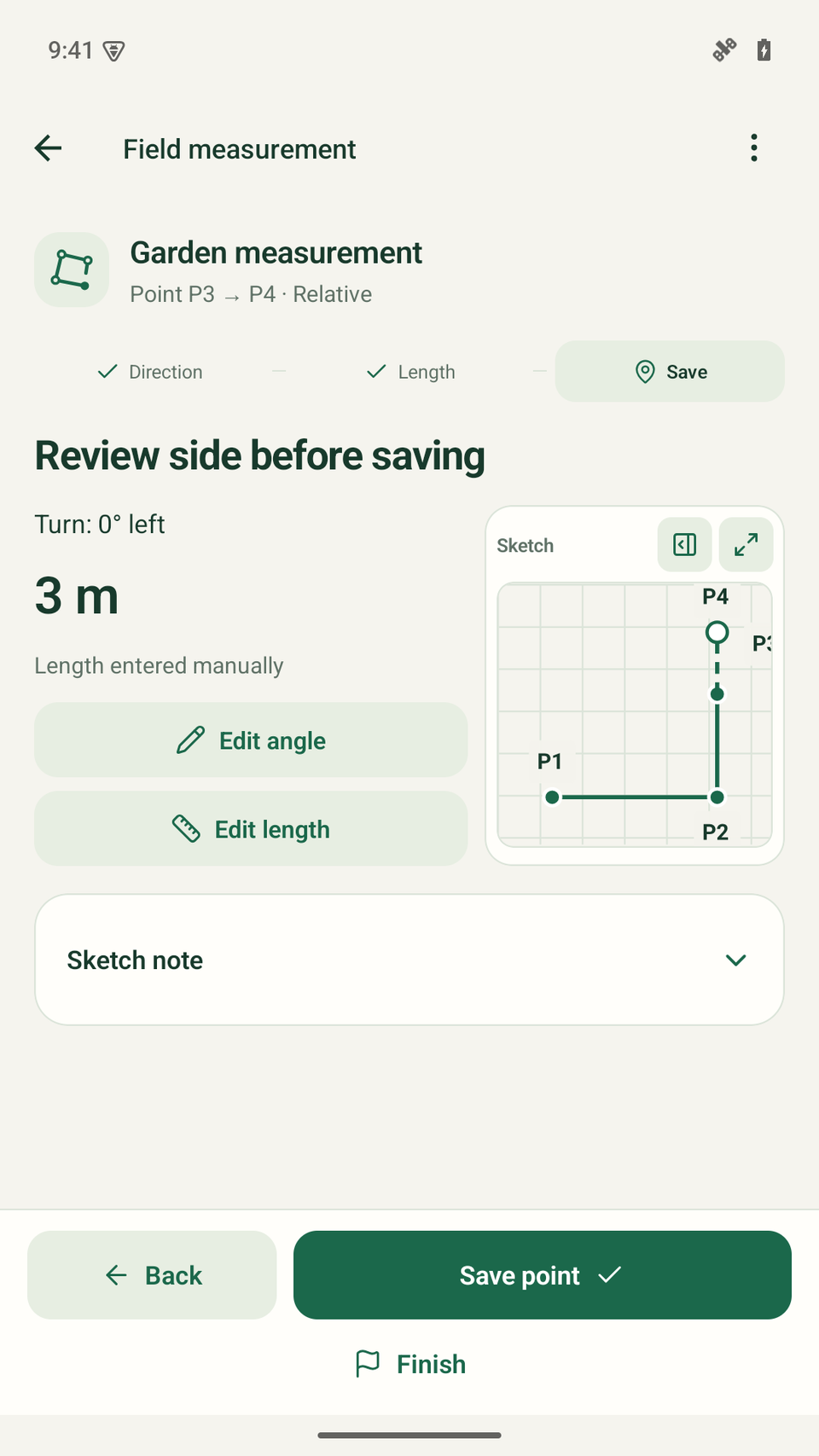
Choose Review side. Check the length, direction and draft outline. If something needs changing, use Correct angle or Correct length.
Choose Save point, then repeat direction → length → save for each next side. When finishing, close the outline or leave the sketch open.
Correct an earlier dimension
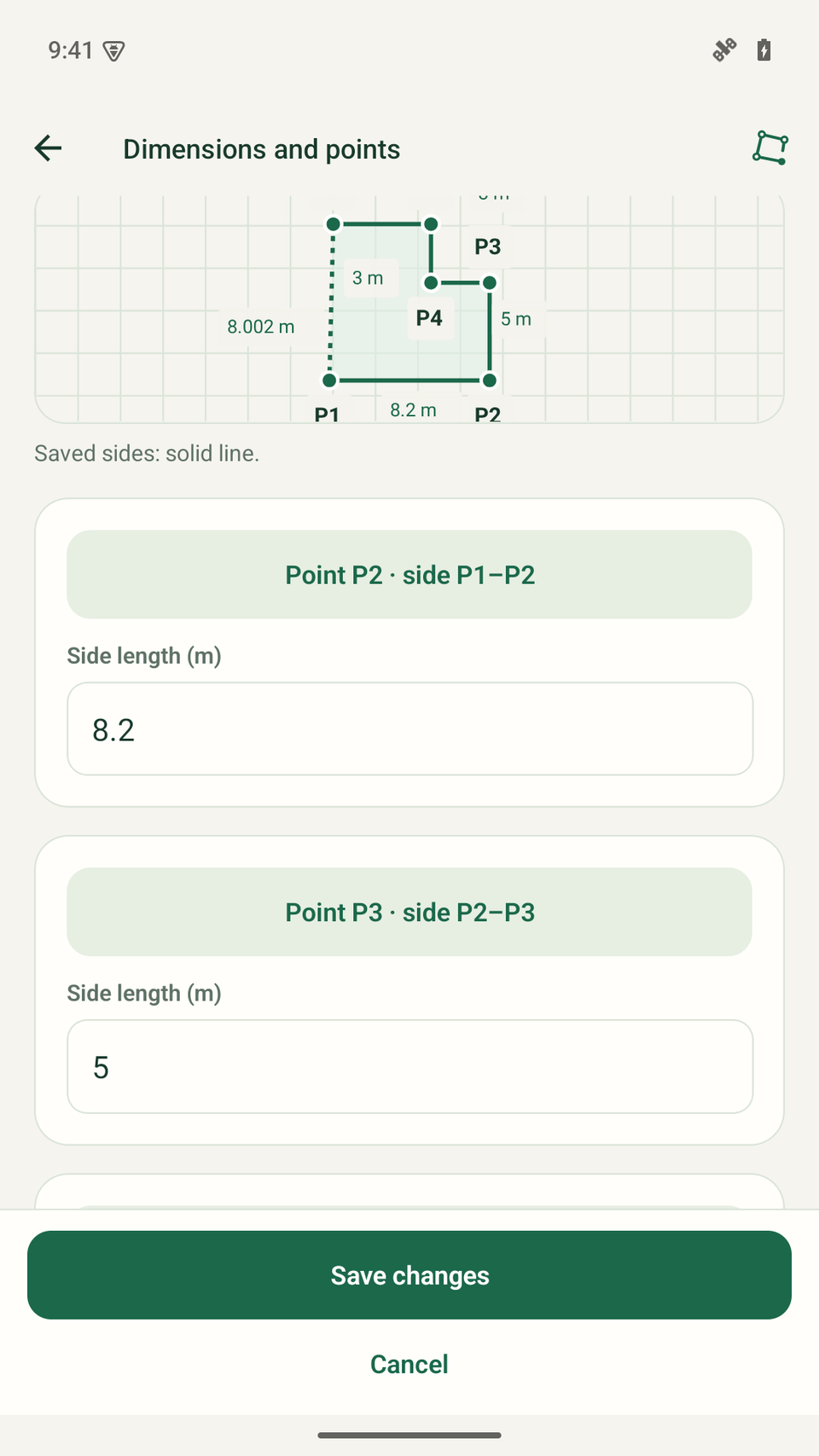
Open Dimensions and points and edit the relevant side’s length. The preview updates before saving. Choose Save changes to apply it, or Cancel.
This screen shows an unsaved change to P1–P2 from 8 to 8.2 m. A change can move subsequent points and affect the area. Cancelling keeps the example at 8 m.
Prepare a PNG to save or share
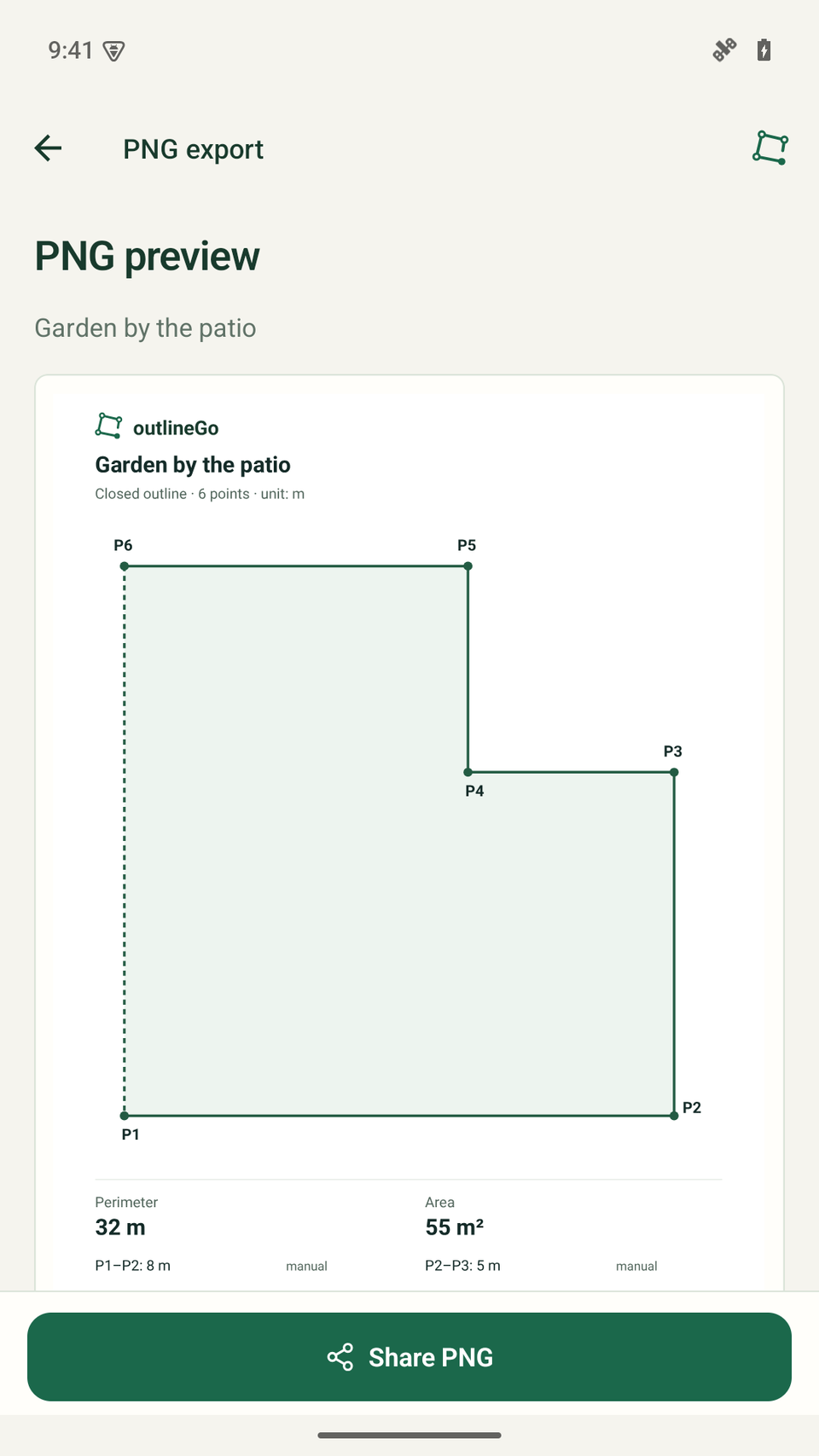
In the summary, choose Export PNG. Check the preview, then choose Share PNG and select an available destination in Android.
Free PNGs include a watermark. Plus offers PNGs without that watermark and DXF files. Sketches stay locally on your phone; export a file when you need it.
Download the example
Garden by the patio
6 points · 32 m perimeter · 55 m² · unit: m
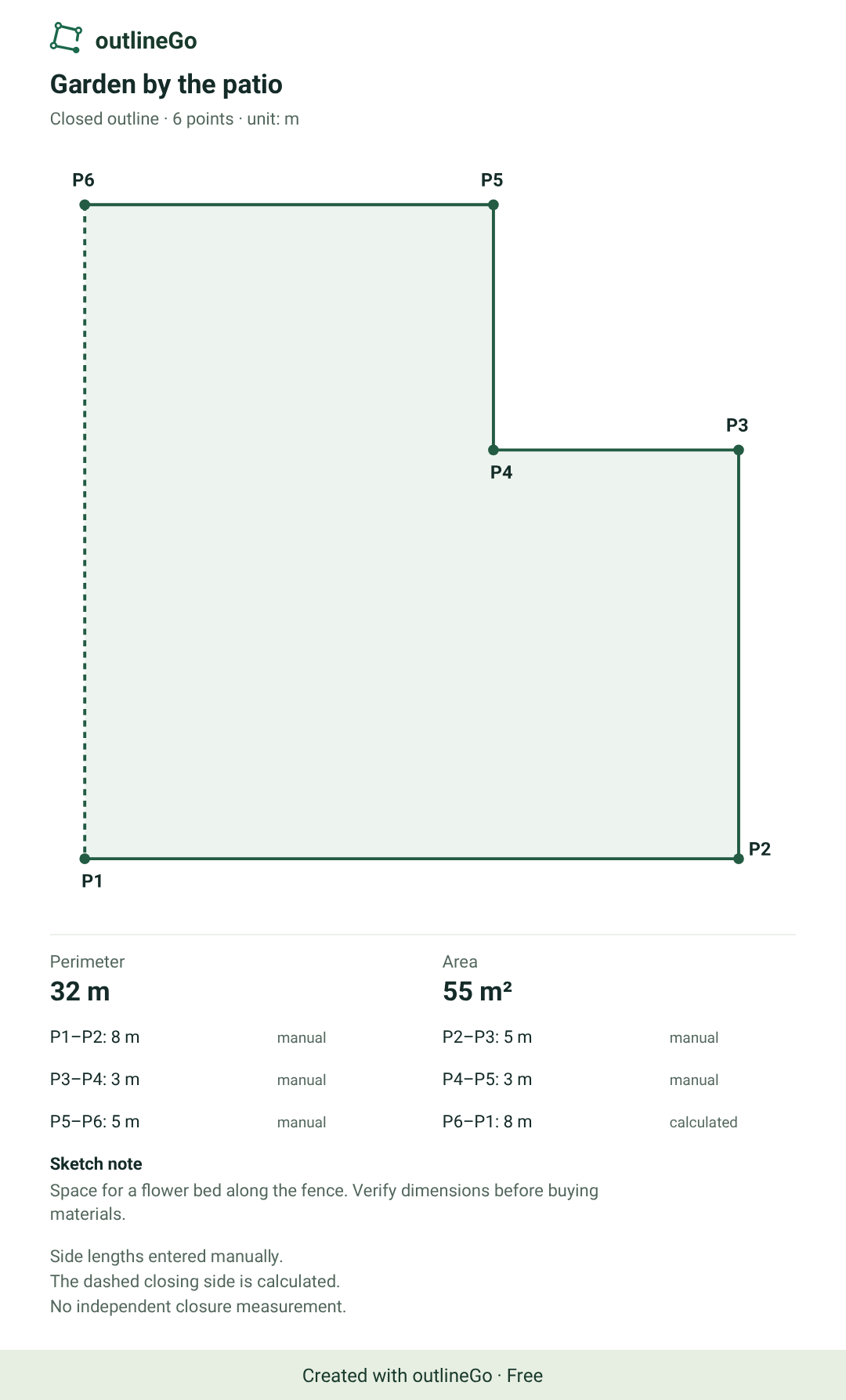
The PNG is an original export with the Free watermark. You can download the sample DXF without a purchase; exporting your own sketches to DXF requires Plus.
outlineGo / Android
Your next plan
starts with an outline.